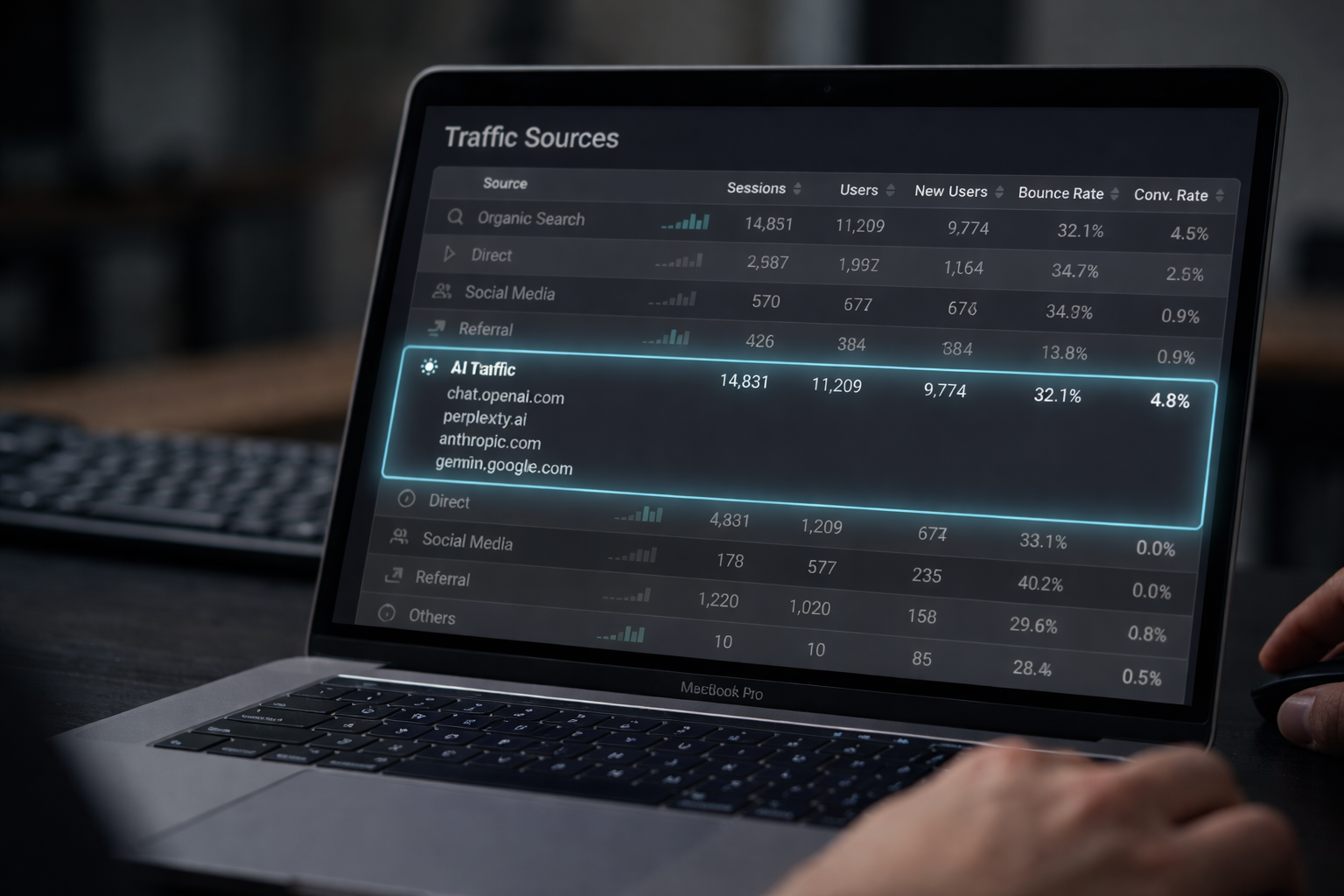
AI platforms like ChatGPT, Perplexity, Gemini, and Claude are now sending measurable traffic to websites. If you're not tracking it in GA4, you're flying blind on one of the fastest-growing traffic 2026.
In this guide, you'll learn exactly how to find AI traffic in Google Analytics 4, step by step. We'll cover where it hides in your default reports, how to build custom reports and segments to isolate it, and what to do once you've identified it. Whether you're an SEO, a digital marketer, or a site owner, this is the guide you need right now.
Table of Contents
1. What Is AI Traffic and Why Does It Matter?
AI traffic refers to visitors who land on your website after clicking a link surfaced by an AI-powered tool. Platforms like ChatGPTPerplexity AI, Google's AI OverviewsMicrosoft Copilot, and Claude now recommend and link to web content in their responses — driving real, intent-rich users to your pages.
Unlike traditional search traffic, AI-referred users often arrive with a very specific query already answered in part — they're clicking through for deeper information, a product, or a service. Early data from across the web shows AI traffic frequently converts at higher rates than generic organic traffic.
According to industry reports in early 2026, websites in sectors like finance, healthcare, SaaS, and e-commerce are seeing AI platforms account for 5–15% of total referral traffic — a figure that has grown over 300% year-over-year. If you're not measuring it, you can't optimise for it.
2. Where GA4 Hides AI Traffic by Default
This is where most people get confused. GA4 does not have a dedicated "AI Traffic" channel out of the box. Depending on the source, AI-referred traffic lands in different buckets:
- Referral — when the AI platform passes a referrer header (common with Perplexity, Bing Copilot, and some ChatGPT browsing results).
- Direct — when the AI tool opens your link in a new tab without passing a referrer (common with many in-app AI experiences).
- Organic Search — when traffic comes from Google's AI Overviews embedded in standard search results.
- (not set) — when GA4 simply cannot determine the source.
This fragmentation is the core challenge. You need to dig into your referral sources and session data to pull AI traffic out of these default buckets and view it clearly.
3. Step-by-Step: How to Find AI Traffic in GA4
Go to Traffic Acquisition Report
In GA4, navigate to Reports → Acquisition → Traffic Acquisition. This is your starting point. By default, it shows sessions broken down by Default Channel Group.
Switch the Primary Dimension to "Session Source"
Click the dimension drop-down at the top of the table (it says "Session Default Channel Group") and switch it to Session Source. This reveals the actual referring domains. Look for entries like chat.openai.com, perplexity.ai, bing.com, gemini.google.com, and claude.ai.
Filter for Known AI Sources
Click the search/filter icon above the table. Add a filter: Session Source → contains → one of your known AI domains (see the table below). This will show you aggregated traffic from all AI platforms in one clean view.
Use the Exploration Report for Deeper Analysis
For a more powerful view, go to Explore → Blank Exploration. Drag Session Source / Medium into rows, and your key metrics (Sessions, Engaged Sessions, Conversions) into values. Apply a segment or filter for AI sources. This gives you a full picture — including bounce rate, pages per session, and goal completions — all broken down by AI referrer.
Create a Saved Segment for AI Traffic
In Explore, click + Add Segment → Create New Segment. Set the condition: Session Source contains "perplexity.ai" OR "chat.openai.com" OR "gemini.google.com" (and any others relevant to you). Save this segment. You can now apply it to any report in GA4 instantly, making ongoing monitoring much faster.
Some AI platforms (notably certain ChatGPT features and Claude's Projects) do not pass a referrer, so a portion of your AI traffic will always appear as Direct. UTM parameters on any links you control (e.g., in your own content shared via AI tools) can help bridge this gap.
4. Common AI Referral Sources to Monitor in GA4
Below are the most common AI platforms currently driving referral traffic. Add these to your filters and custom channel grouping:
| AI Platform | Referral Domain in GA4 | Traffic Type |
|---|---|---|
| ChatGPT | chat.openai.com | Referral / Direct |
| Perplexity AI | perplexity.ai | Referral |
| Microsoft Copilot | bing.com / copilot.microsoft.com | Referral |
| Google Gemini | gemini.google.com | Referral |
| Google AI Overviews | google.com (medium: organic) | Organic Search |
| Claude (Anthropic) | claude.ai | Referral |
| You.com | you.com | Referral |
| Meta AI | meta.ai / instagram.com | Referral / Social |
5. Creating a Custom AI Channel Grouping in GA4
The most scalable way to track AI traffic long-term is by creating a Custom Channel Grouping in GA4. This consolidates all AI sources into a single "AI / LLM" channel that appears automatically in your Traffic Acquisition reports.
How to set it up:
- In GA4, go to Admin → Data Display → Channel Groups.
- Click Create New Channel Group.
- Add a channel and name it "AI / LLM Traffic".
- Set the rules: Session Source matches regex — enter a pattern like:
perplexity\.ai|chat\.openai\.com|gemini\.google\.com|copilot\.microsoft\.com|claude\.ai|you\.com|meta\.ai
- Save the channel group and apply it to your reports.
Once active, this channel will appear alongside Organic Search, Direct, Referral, etc. in all your acquisition reports — giving you a clean, ongoing view of AI traffic volume and quality without manual filtering every time.
6. Pro Tips to Get More From Your AI Traffic Data
Compare Quality to Other Channels
Use the Exploration tool to compare against Organic and Direct on metrics like Engagement Rate Average Session Duration, and Conversion Rate. Many websites are finding AI-referred users spend significantly more time on page — an important signal for content strategy.
Track Which Pages Receive the Most of This
Apply your AI segment and then look at the Pages and Screens report. This tells you which pieces of content are being surfaced by AI tools most often. Double down on those topics, update them regularly, and ensure they include structured data to increase AI discoverability.
Set Up Conversion Tracking
Identify your key conversion events in GA4 (form submissions, purchases, sign-ups) and check the conversion rate specifically for AI-referred users. This is the most powerful metric for justifying investment in AI SEO (also called Generative Engine Optimisation or GEO.
Monitor Trend Over Time
Add your AI channel or segment to a Comparison View in GA4 and look at a rolling 6-month or 12-month trend. AI traffic is growing fast — tracking the trajectory helps you forecast and plan content investments accordingly.
Set up a GA4 custom alert (Admin → Alerts) to notify you when AI traffic drops significantly. A sudden drop could indicate your content has been de-cited by an AI platform — something to investigate quickly.
7 A Smarter Way to Track AI Traffic
Manually building segments, custom channel groups, and exploration reports in GA4 every time you want to find AI traffic in GA4 is time-consuming — and easy to get wrong. Artzen.io is built to solve exactly this problem.
Artzen is an intelligent content and analytics intelligence platform that automatically surfaces your AI referral traffic, shows which pages are being cited by AI tools, and tracks your Generative Engine Optimization (GEO) performance over time — all in a single, intuitive dashboard connected directly to your GA4 data.
Instead of spending hours configuring reports, you get instant clarity: which AI tools are sending you traffic, what content they prefer, and how those visitors convert. Whether you're scaling content operations or just starting to optimize for AI discovery, Artzen gives you the edge.
👉 Explore Artzen.io and start tracking your AI traffic intelligently today.
Frequently Asked Questions
Final Thoughts
AI traffic is no longer a niche curiosity it's a legitimate and fast-growing acquisition channel that every website owner should be measuring. Google Analytics 4 gives you the tools to find, segment, and analyse this traffic, but it requires some manual configuration since GA4 doesn't surface it automatically.
Start by exploring your Session Source data today, build a custom AI channel grouping, and set up a saved segment in Explore. Once you have clean visibility into your AI traffic, you can begin optimising your content strategy to earn more of it, and track the ROI of those efforts with confidence.