Blog
Fix Google Merchant Center Value Missing GTIN in Shopify (Step-by-Step)
- By Ravi Kumar
- No Comments
05 Mar
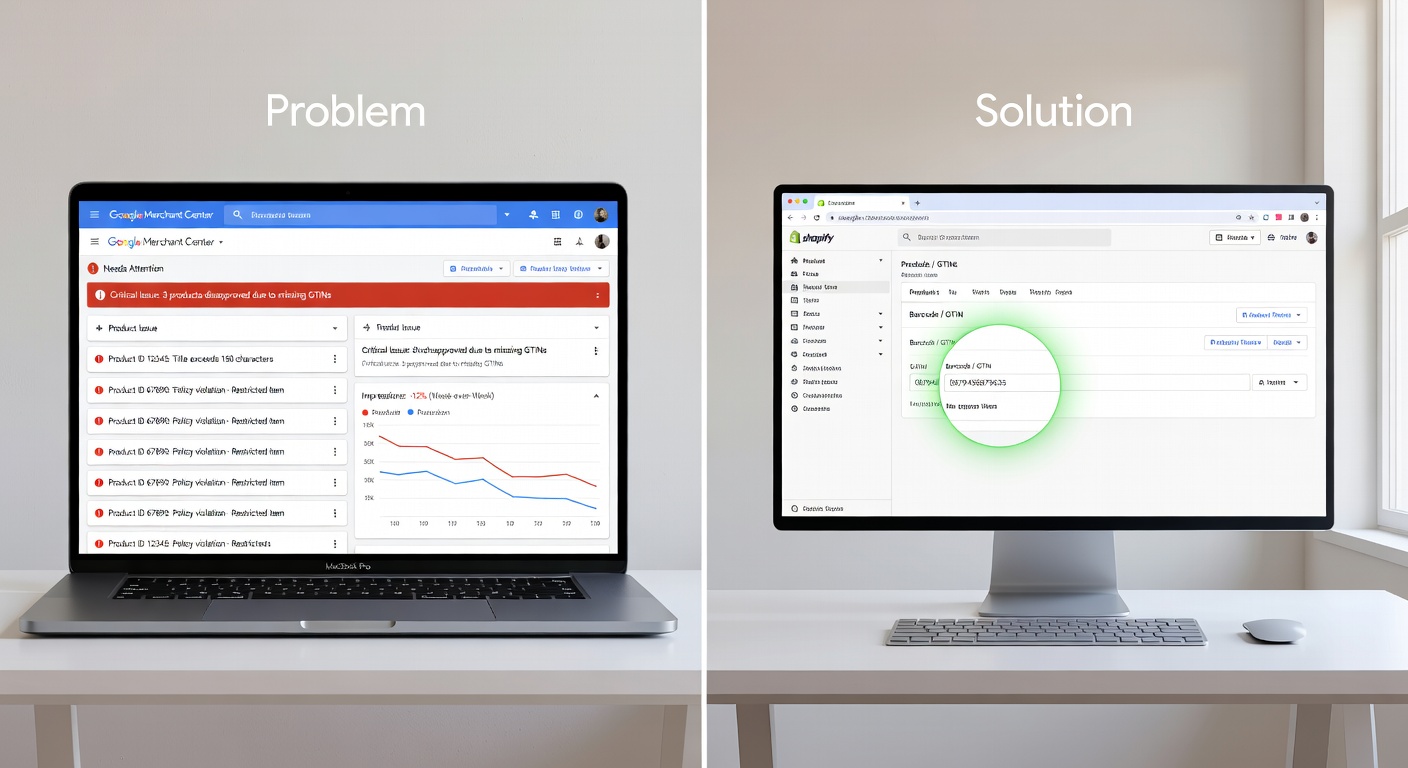
If you run a Shopify store and advertise on Google, you’ve probably seen this warning inside Google Merchant Center: “Limited performance due to missing value: GTIN.” It’s one of the most common errors Shopify merchants face, and it directly hurts your Google Shopping visibility. The good news is that you can fix the Google Merchant Center value missing GTIN Shopify error in a few straightforward steps no developer needed.
This guide walks you through exactly what GTIN is, why Google flags it, and how to resolve it for good.
What Is a GTIN and Why Does Google Require It?
GTIN stands for Global Trade Item Number. It’s a standardized product identifier assigned by the manufacturer. You’ll recognize it as the number beneath a product barcode, whether that’s a UPC (North America), EAN (Europe), or ISBN (books).
Google uses GTINs to match your products to relevant search queries and compare them across different merchants. Therefore, products without a valid GTIN are harder to categorize and often receive lower priority in Google Shopping results.
According to Google’s official Merchant Center help, submitted GTIN values must come directly from the manufacturer. You cannot create your own.
When Is a GTIN Required?
Not every product needs a GTIN. However, Google requires one in most cases when:
- The product is manufactured by a recognized brand
- The product belongs to a category like apparel, electronics, or home goods
- The product has a barcode on its physical packaging
If your products are handmade, vintage, or custom, you may be exempt. In that case, you should set the identifier_exists attribute to no in your feed.
Why Does the “Missing Value: GTIN” Error Appear in Shopify?
When you connect your Shopify store to Google Merchant Center – whether through the native Google & YouTube channel app or a third-party feed tool – Shopify maps the Barcode field in your product variants to the GTIN attribute in Google’s feed.
If that barcode field is empty, Google receives no GTIN value. As a result, it flags those products with the “missing value [gtin]” warning. This doesn’t automatically disapprove your products, but it does limit their performance in Shopping ads.
Common reasons this error appears include:
- You never added barcodes to your Shopify products
- You’re selling dropshipped products whose suppliers didn’t provide GTINs
- You bulk-imported products without populating the barcode field
- You have product variants where some variants have barcodes and others don’t
How to Fix the Missing GTIN Value Error in Google Merchant Center for Shopify
To fix that we need to follow these steps below
Step 1: Identify Which Products Are Affected
First, log in to your Google Merchant Center account. Then follow this path:
Products → Diagnostics → Item Issues tab
Look for the issue labeled “Missing value [gtin]” and download the CSV file of affected products. This gives you the full list so you can work through them systematically.
Step 2: Find the Correct GTIN for Each Product
Next, you need to locate the official GTIN for each affected product. Here’s where to look:
- Product packaging – the number beneath the barcode
- Your supplier or manufacturer – email them directly and ask for the GTIN or UPC list
- GS1 database – GS1 US is the authoritative source for GTIN verification in the United States
- ISBN databases – if you sell books, use ISBNdb.com
Make sure the GTIN is the manufacturer-assigned number. Do not make one up or reuse an existing one, because Google will validate it and flag incorrect values.
Step 3: Add the GTIN to Your Shopify Product Barcode Field
Once you have the correct GTINs, head to your Shopify admin:
- Go to Products in the left navigation
- Select the product you need to fix
- Scroll down to the Variants section
- Click on the variant (or click Edit → Edit barcodes)
- Enter the GTIN in the Barcode (ISBN, UPC, GTIN, etc.) field
- Click Save
Repeat this for every affected product and variant. If you have many products, consider using Shopify’s bulk editor to update barcodes faster.
Step 4: Sync Your Feed Back to Google Merchant Center
After saving your product data in Shopify, your feed needs to resync. If you’re using the Google & YouTube channel app, the sync usually happens automatically within 24–48 hours. However, you can trigger a manual sync from the app’s dashboard if you want faster results.
Once the sync completes, go back to Merchant Center → Diagnostics and check whether the “missing value [gtin]” issues have cleared. Google may take up to 3 business days to re-review your products.
What to Do If You Don’t Have a GTIN
Some products genuinely don’t have a GTIN. This is common for:
- Custom or handmade products
- Vintage items
- Bundles or multipacks with no single identifier
- Dropshipped goods from suppliers who don’t provide them
In these cases, you have two options:
Option 1: Leave the Barcode field blank. Google will receive no GTIN value, and your product may show the “missing value” warning. However, it won’t necessarily be disapproved especially if you’ve provided a brand name and MPN (Manufacturer Part Number, mapped to the SKU field in Shopify).
Option 2: Set identifier_exists to no. This tells Google explicitly that no standard identifiers exist for this product. This prevents unnecessary disapprovals and keeps your listing eligible for Shopping. You can set this in your feed app’s product settings or via a custom rule.
For dropshipped products, moreover, it’s worth contacting your supplier one more time and requesting a UPC list. Many AliExpress or wholesale suppliers have barcodes available but don’t share them proactively.
How Product Feed Quality Affects Your Google Shopping Performance
Fixing the missing GTIN error is not just about avoiding warnings. It’s about giving your products the best possible chance to appear in relevant searches.
Products with valid GTINs benefit from:
- Better matching to search queries
- Eligibility for more Shopping features, including product knowledge panels
- Higher ad impressions and click-through rates
- More accurate pricing comparison across merchants
In other words, a complete product feed directly translates to better return on your ad spend. At Artzen.io, we help businesses optimize their product feeds and SEO strategy together because strong data feeds and strong content work best in combination.
Avoiding GTIN Errors in the Future
Once you’ve fixed the current errors, it’s smart to build a process that prevents new ones. Here are a few best practices:
- Always add barcodes when importing new products. Make it a non-negotiable step in your product upload workflow.
- Request GTINs from suppliers before listing products. Add it to your supplier onboarding checklist.
- Use a feed management app that validates GTINs before they reach Merchant Center. Apps that check for correct formatting (length, numeric only, valid checksum) can save you hours of cleanup work.
- Audit your feed monthly. Even small changes to your product catalog can introduce new GTIN gaps.
FAQ
Where do I add a GTIN in Shopify?
In Shopify, the GTIN lives in the Barcode field under each product variant. Go to Products → select your product → Variants → Edit → Barcode. Enter the manufacturer-assigned GTIN there, and Shopify will sync it to Google Merchant Center through your connected feed.
Can I fix the missing GTIN error in Shopify without a barcode?
Yes. If your product genuinely has no GTIN such as a custom or handmade item you can set the identifier_exists attribute to no in your product feed. This tells Google no standard identifier exists, which prevents disapprovals without requiring a barcode you don’t have.
How long does it take for Google Merchant Center to clear the GTIN error after fixing it?
After you add the correct GTIN in Shopify and your feed syncs, Google typically takes 1–3 business days to re-review and clear the error. You can check the status under Products → Diagnostics → Item Issues in your Merchant Center account.
Does a missing GTIN get my products disapproved from Google Shopping?
Not always. A missing GTIN usually results in a “limited performance” warning rather than a full disapproval. However, it does reduce your product’s visibility and eligibility for certain Google Shopping features, so fixing it is important for maximizing your ad performance.
What is the GTIN format accepted by Google Merchant Center?
Google accepts several GTIN formats: UPC (12 digits), EAN (13 digits), JAN (8 or 13 digits), and ISBN (13 digits for books). The value must be numeric only, have the correct number of digits, and pass a checksum validation. GTINs with letters, extra digits, or incorrect checksums will trigger an “invalid value [gtin]” error instead.
What should I do if my dropshipped products don't have GTINs?
Contact your supplier and request the UPC or EAN codes for each product. If they genuinely don’t have them, leave the Barcode field blank in Shopify and make sure you’ve provided the brand name and SKU (mapped to MPN). You can also set identifier_exists to no for custom or unbranded products to avoid disapprovals.